Download & run Tavra
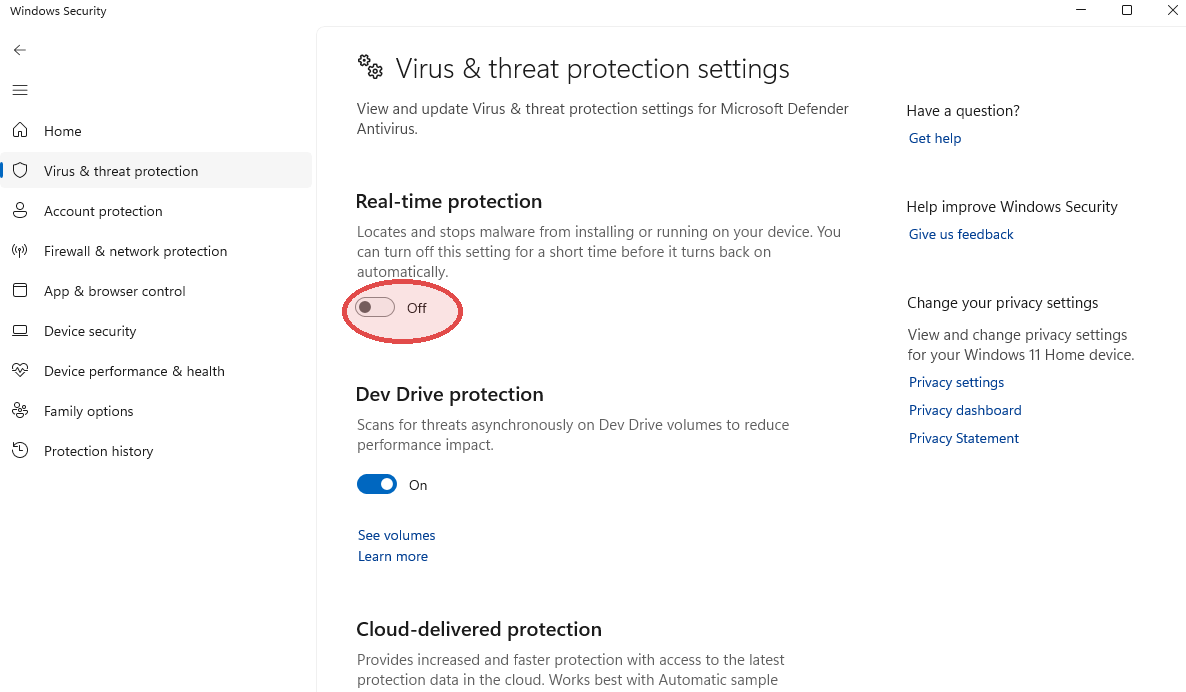
Turn off Real-time Protection first, then download. Otherwise Defender eats Tavra.exe on the way in. Do the whole flow in one sitting — RTP auto-turns back on after a while.
Steps
Turn off Real-time Protection
Windows Security → Virus & threat protection → Manage settings → toggle Real-time protection off. Do this right before the next step — Windows auto-turns it back on after a while.
Open your dashboard, click Download Tavra.exe
Head to app.trytavra.com, click Downloads, hit the button. File lands in your Downloads folder.
Drag Tavra.exe into your Tavra folder
Open your Downloads folder, drag Tavra.exe into the Tavra subfolder you made in step 2. Once it's in there it's permanently safe — the folder exclusion covers every update from here on.
RTP flipped back on before you could download, and Defender ate the file. See Defender ate my download to restore it.
Double-click Tavra.exe
Windows might warn Windows protected your PC. Click More info, then Run anyway.
A pairing prompt appears
First launch on an unpaired PC opens a small window asking for an 8-character code. Leave it up — the next page shows you where to get the code.
The pairing prompt is on screen, waiting for a code.